
Schedule Ghost articles and newsletters
Prepare an essay, a regular column or a subscriber update. Review your site, images and reader access, then choose the publishing time and whether to send a newsletter.
Prepare the article and choose its readers
Prepare the full article
Set images and reader access
Decide whether to email
Articles, newsletters and social posts
Set up an article and choose who can read it
For example, prepare an article titled “How we prepare the studio for a workshop”. Add the article text, select the author and tags, and choose public, member, paid or specific-tier access as appropriate. Review the title, content and local publishing time together before scheduling.
An article and a separate social introduction
A LinkedIn or Facebook post can introduce the article to your social followers. Once the article is published, add its verified link to the social draft before reviewing and scheduling that post. To send the article by email too, select the Ghost newsletter and its audience.
See the steps in Influence
Screenshots from an example workspace with fictional data. The interface is shown in English.
1. Edit the text and check the preview
Edit the text beside the selected account’s preview. Saving a draft leaves it available for more changes.
Open full-size screenshot (new tab)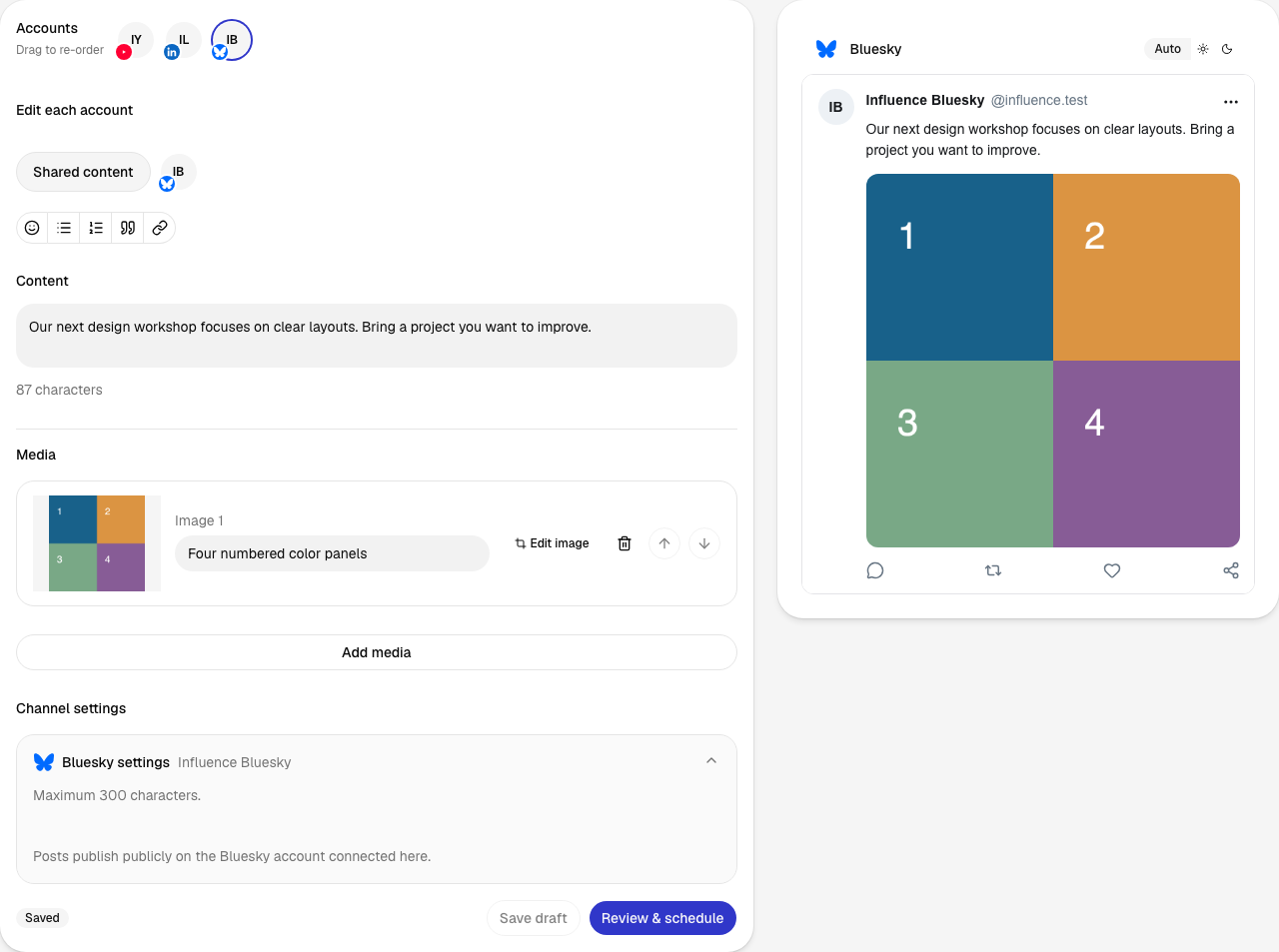
2. Review before approving
The review brings the account, post, date, time and time zone together. Confirm schedule saves this version for the chosen time.
Open full-size screenshot (new tab)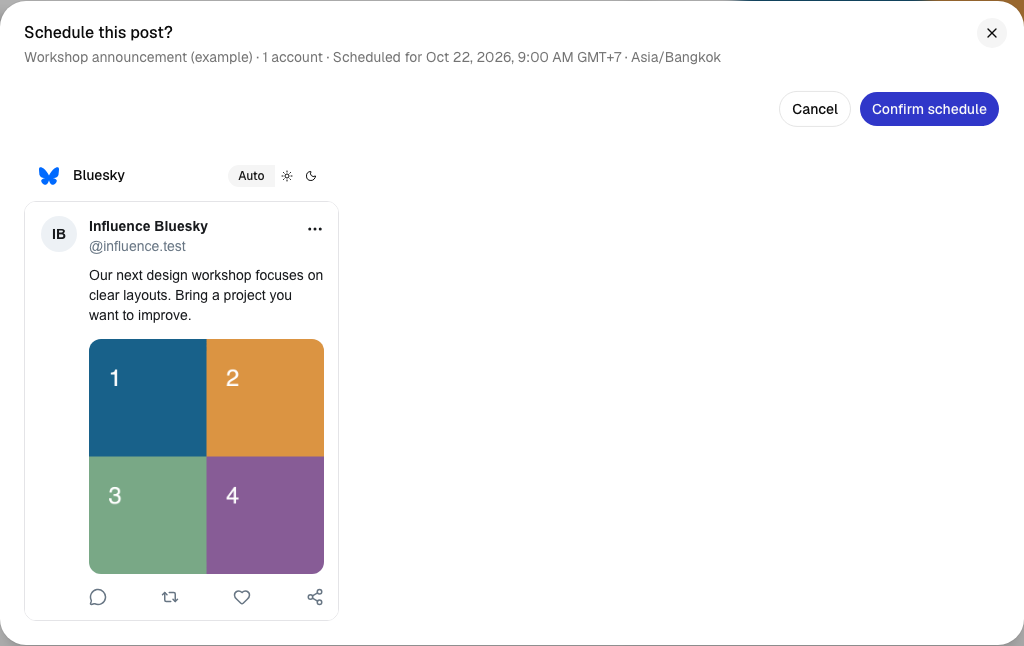
3. Find the scheduled post
The calendar shows when each post is due. Its status changes as publishing progresses; Activity shows the later delivery result.
Open full-size screenshot (new tab)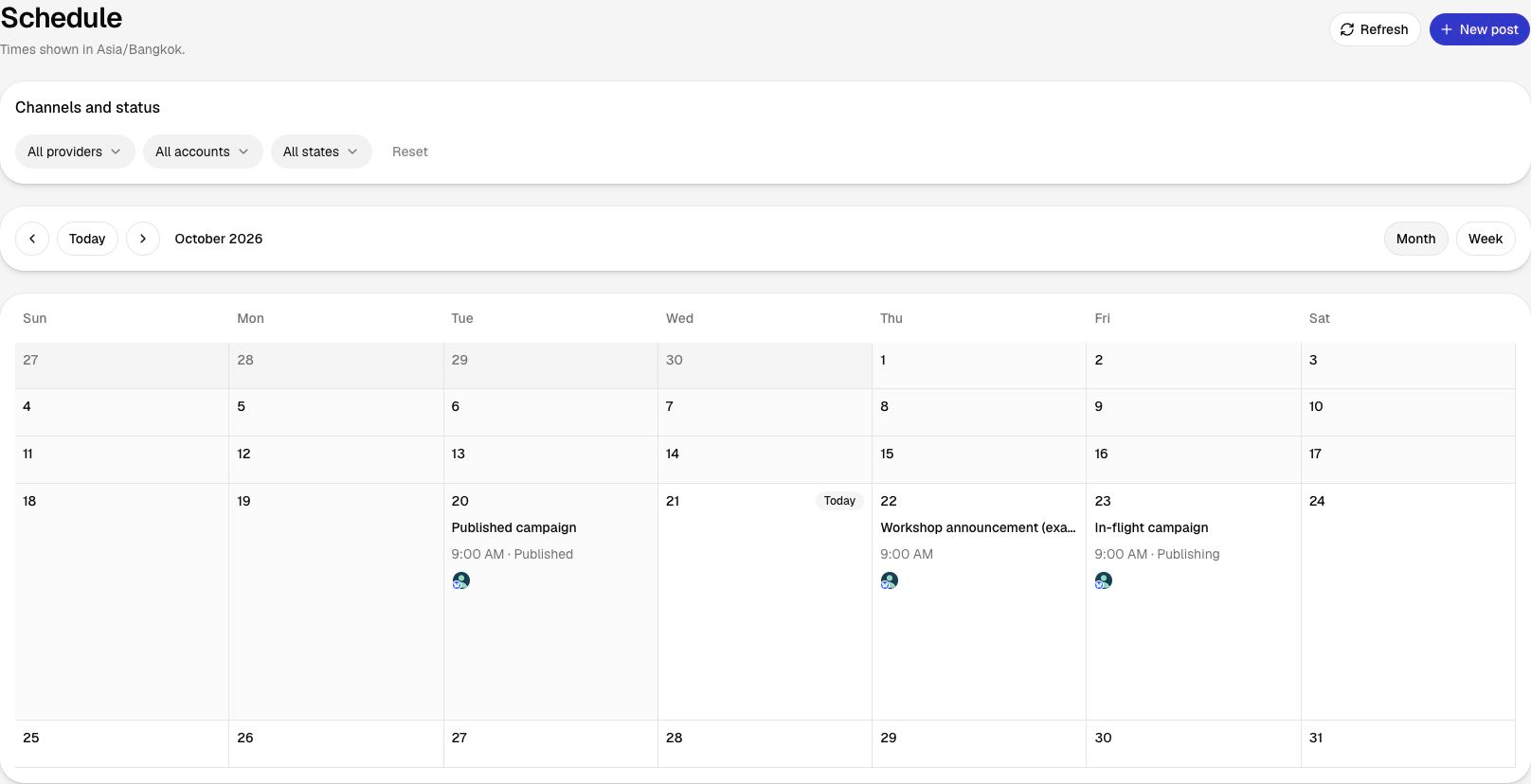
Get a first draft with Influence IQ
Give Influence IQ the topic and intended readers. Review the draft, facts, HTML and images, then check reader access and any email recipients before approving.
Give Influence IQ your notes and saved Brand Guidelines for editable posts and suggested dates. Drafting and image generation use IQ credits. Review the image-generation quote before starting and the finished content before publishing.
Explore Influence IQ


Start with an AI assistant
With a supported Influence connection, you can plan campaigns and revise drafts in ChatGPT or Claude. Create text posts, image galleries and videos for your connected accounts. Use each account’s posting settings for Stories, Reels, articles and other supported formats. Upload your images and videos in Influence, then ask your assistant to use them. Review the attached media in Influence and approve the exact post before publishing or scheduling it. Check Settings for setup and connection status.
Connect your other channels
A campaign holds related posts for your connected accounts. Each channel has its own text and media, with formats and publishing options determined by the account’s permissions.
Plan your next posts
Save your ideas and media, draft the posts for each channel and choose their publishing dates. Review the finished posts before they go out.
Get startedFrequently asked questions
- Which Ghost credentials do I need?
- Use the API URL and Admin API key from a custom integration. The Content API key cannot publish. API access depends on your hosting plan or self-hosted configuration.
- Can I send a newsletter?
- Yes, when a newsletter is available on the connected site and email sending is configured. Choose the newsletter and its audience explicitly. Leaving it unselected publishes to the site only.
- Can I schedule a members-only article?
- Yes. Select members, paid members or the available membership tiers, then review the content and time. Ghost manages membership and reader access.
- What Ghost analytics can I see?
- Insights shows the counters available for recent posts, including email metrics where Ghost supplies them. Some posts or metrics may have no data. Website traffic and unique reach are not included.
 Instagram
 TikTok
 Mastodon
 Pixelfed
 Plurk
Plurk Telegram
 Signal
 Tumblr
 Discourse
 Misskey
 Matrix
 PeerTube