

Connect Influence to ChatGPT
Connect your Influence workspace, check which accounts are available, then prepare your first post. Review the exact content & approve it before Influence schedules or publishes anything.
Influence MCP · example workflow
Draft a short launch post for my connected channels about our new feature. Make each version fit its destination.
- Save a draft with separate text for each account
- Find connected accounts in your workspace
- Review the exact text, accounts & time in chat
How ChatGPT uses Influence
Describe the post to ChatGPT, save the draft in Influence & review it before approval. After publishing, you can ask for each account’s result.
Just ask in your own words
Your connected channels
Approval before publishing
Try a workflow in ChatGPT
Connect Influence, copy a prompt & replace the parts in square brackets. These examples run only when you send them in ChatGPT.
Use Influence’s saved brand facts and guidelines to propose a campaign for next week. Ask which connected accounts and goal to use. Ask before using workspace IQ credits. Keep every post as a draft.Use Influence to draft a post about [topic] for a connected account I choose. Show ready JPEG or PNG images from my Influence library and let me select one. Save the draft with 1 image and accurate alt text, show the saved caption and give me a link to the draft in Influence. Do not prepare a publishing review, publish or schedule.For my saved Influence plan [plan name], suggest 1 image. Ask before spending IQ credits on image ideas. Show the image quote’s estimated and maximum IQ credits and expiry. Ask me to agree before starting. When ready, save a draft with the image and accurate alt text, show the saved caption and give me a link to the draft in Influence. Do not prepare a publishing review, publish or schedule.Use Influence to prepare 1 post about [topic] for an account I choose. Ask whether to publish now or schedule for [date] at [time] in [time zone]. Show the exact content, media previews or links, account, settings and time. Use the in-chat review card when available. Otherwise, wait for my new explicit approval in chat after showing the complete review.Check the actual images or videos, text, accounts, settings & time before approving. Use the in-chat review card when available. Otherwise, inspect the media previews or links & give a new explicit approval in chat. Add accurate alt text where required. For TikTok Direct, choose visibility, interactions & promotion details in chat, then review & explicitly approve the post & consent terms. A review card is optional.
Read saved Influence Insights for [account] and posts from [start date] to [end date]. Read 1 account at a time in small batches, continuing through the available pages. Summarize the available metrics, when they were checked and any missing data. Keep missing or stale readings separate from measured zeroes. Do not invent totals or refresh readings unless I ask.Search my saved Influence brand guidance, recent drafts and plans, and saved social Insights for [topic]. Cite the original Influence sources. Use only available data; do not generate content, refresh Insights, edit a draft or publish.Search saved brand guidance, recent campaigns & plans, & saved social Insights with links to the original Influence sources. Research reads existing information; it does not browse websites, refresh Insights or change drafts.
Help turn this brief for [business] into a campaign for [goal]. Check my connected Influence workspace and ask which accounts to use. Compare the brief with saved brand guidance and flag differences. Write a reusable brief I can share with my team. Ask before using IQ credits and keep posts as drafts.Keep briefs & prompts together in a ChatGPT Space, then use a conversation where Influence is connected. Each person authorizes their own workspace. Sharing a prompt does not share account access or approve posts.
Ask your Dot to create a recurring read-only campaign brief, then check the task in ChatGPT Scheduled. Keep it to saved Influence information, without creating drafts, publishing, changing schedules, refreshing Insights or spending IQ credits.
How do I connect Influence to ChatGPT?
Add Influence as a custom MCP connection in ChatGPT, then sign in to your Influence workspace & choose the permissions. Enable automatic renewal if you want to stay connected. The setup guide below covers the current steps & what to do if tools are missing.
- 1
Connect
Connect & manage social accounts - 2
Sign-in
Add your MCP URL & sign in with OAuth - 3
Ask
Ask for an editable campaign draft
More ways to use Influence
For Codex, create a scoped Influence key in Settings & use the shown MCP command with INFLUENCE_MCP_TOKEN. Keep the key out of chat & source files.
The optional Influence skill explains the review workflow. For Codex, save it as ~/.agents/skills/influence/SKILL.md. Neither download connects your accounts or grants permissions. In a browser, use the custom MCP connection above. The optional plugin ZIP is for supported local clients, including ChatGPT desktop & Codex CLI.
Use the custom connection above or the Codex setup in Influence Settings.
Fictional example
Check the connection, then save a draft
What you provide
After completing the connection shown in Influence Settings, start a new ChatGPT conversation with Influence selected. Ask: Which accounts are connected, & which can I publish to? Do not create or publish anything.
Connected accounts
The returned accounts should match your Influence workspace. If access fails or expected accounts are missing, check the connection & permissions in Settings.
A saved draft
For the first draft, supply the facts & name the account. Open the saved draft to check its content before requesting a publishing review.
What to check before approving
A skill or plugin supplies instructions; your workspace connection grants access. Follow the setup in Settings & check the returned accounts before asking the assistant to make changes.
From draft to published post
Draft saved
Saved drafts stay editable until you choose to publish or schedule them.
Post reviewed
Review the accounts, text, media, settings & time. If any of these change, review the new version before approving.
Schedule saved
The approved post is waiting for its publishing time. Upcoming shows the saved schedule.
Publication checked
Activity shows the result for each account. If a result is unclear, check the existing post before sending again to avoid a duplicate.

See the steps in Influence
Screenshots from an example workspace with fictional data. The interface is shown in English.
1. Edit the text & check the preview
Edit the text beside the selected account’s preview. Saving a draft leaves it available for more changes.
Open full-size screenshot (new tab)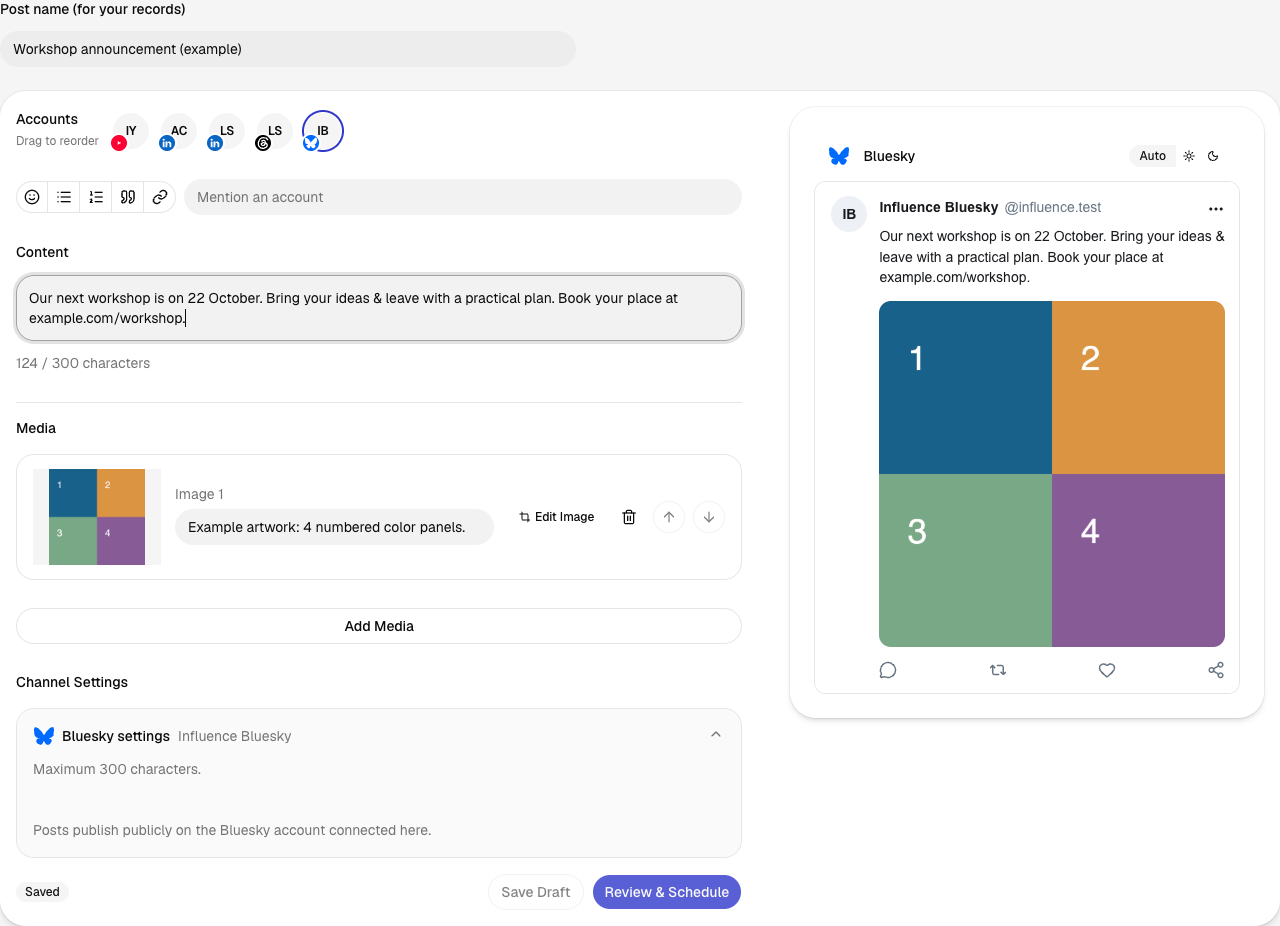
2. Review before approving
The review brings the account, post, date, time & time zone together. Confirm Schedule saves this version for the chosen time.
Open full-size screenshot (new tab)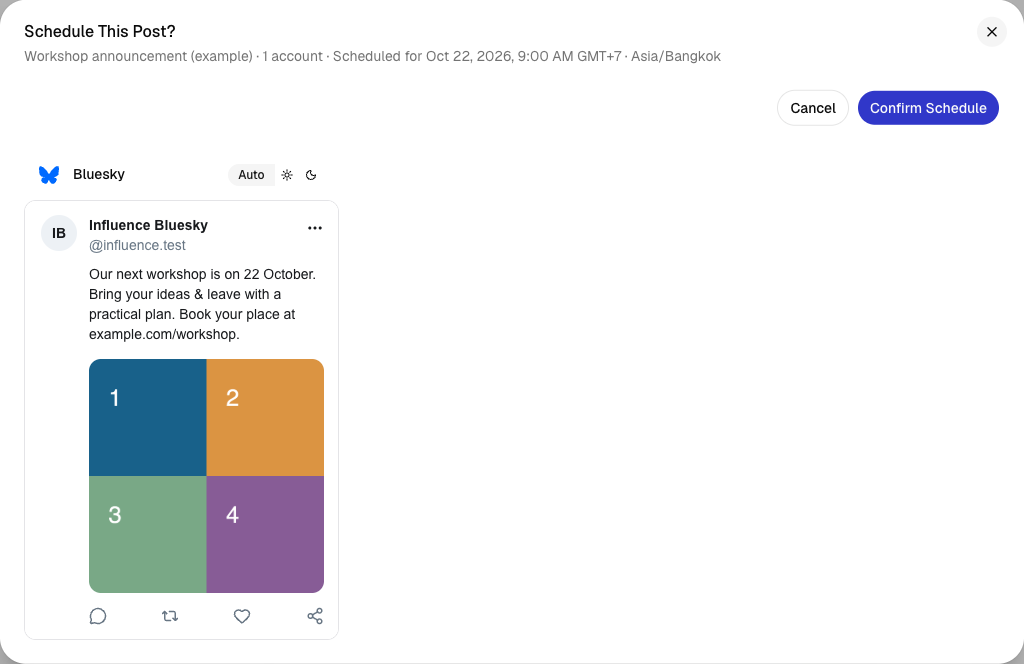
3. Find the scheduled post
The calendar shows when each post is due. Its status changes as publishing progresses; Activity shows the later delivery result.
Open full-size screenshot (new tab)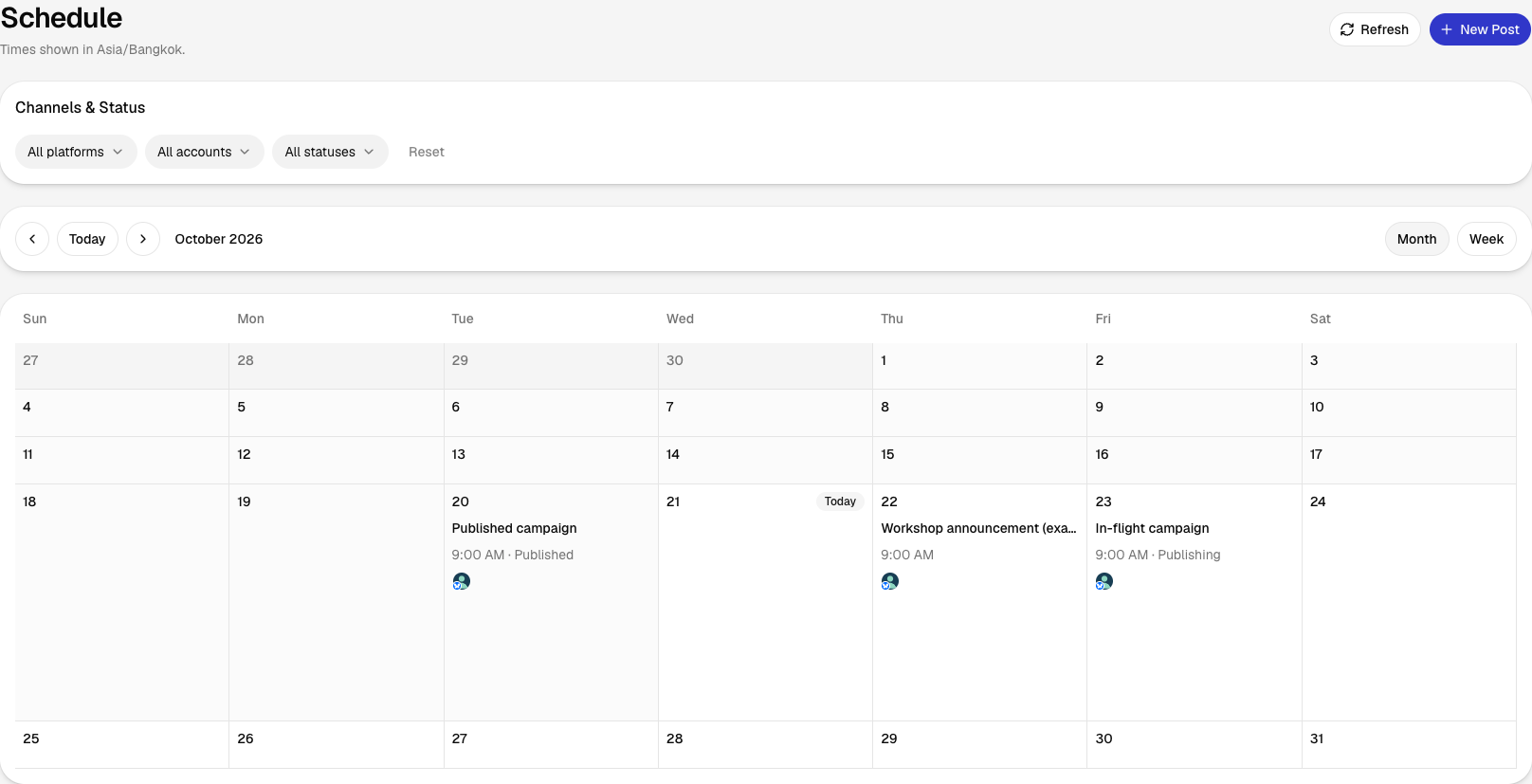
Know what goes out, where & when
Check the accounts, text, media, settings & time, then approve in a supported card or with a fresh explicit chat reply. Changes or expiry need a new review; after an interrupted response, check the saved status before retrying. For TikTok Direct, choose visibility, interactions & promotion details in chat, then review & explicitly approve the post & consent terms. A review card is optional.
Where supported in ChatGPT’s built-in browser, choose Discuss in ChatGPT to annotate the review’s text. Add a comment & choose whether to send it to ChatGPT. Discussing a review does not approve, edit or publish it.
Frequently asked questions about ChatGPT & Influence
Ready to get started?
Prepare your posts & media in Influence, review each account’s version & choose when they publish.
Get started