

Plan social media posts with ChatGPT
- Explore custom MCP setup in Influence Settings
- Review & approve posts with photos or videos in chat
- Choose from channels connected to your workspace
Bring finished photos & videos, prepare posts for several accounts, & approve each exact review before Influence sends it.

How do I connect Influence to ChatGPT?
Add Influence as a custom MCP connection in ChatGPT, then sign in to your Influence workspace & choose the permissions. Enable automatic renewal if you want to stay connected. The setup guide below covers the current steps & what to do if tools are missing.
Explore the ChatGPT connection guideAdd Influence to ChatGPT
Open Plugins, choose Add → Add custom MCP server, name the connection Influence & enter the MCP server URL from Influence Settings → Apps & Automations → Connect Your Assistant → ChatGPT. Use OAuth authentication. After entering the URL, open “Advanced OAuth settings”, set “Base scopes” to offline_access & leave the other settings unchanged. Review the risk warning, select “I understand and want to continue” & choose “Create as a plugin”. Sign in to Influence when prompted, review the workspace & permissions & select “Stay connected for up to 1 year” if you want automatic renewal. Then select “Allow Access” & install the plugin.
OAuth signs you in to Influence. No social password or API key goes into ChatGPT.
Create an Influence workspaceDescribe the post you want
Describe your post, choose the accounts & add your media. ChatGPT prepares a draft for you to review.
Draft a short launch post for my connected channels. Keep the tone upbeat and show me the result.
Here’s your draft. When you’re ready to publish, I’ll show the exact text, accounts and time for approval.
Also try
- 1
Connect
Open Plugins, choose Add → Add custom MCP server, name the connection Influence & enter the MCP server URL from Influence Settings → Apps & Automations → Connect Your Assistant → ChatGPT. Use OAuth authentication. After entering the URL, open “Advanced OAuth settings”, set “Base scopes” to offline_access & leave the other settings unchanged. Review the risk warning, select “I understand and want to continue” & choose “Create as a plugin”. Sign in to Influence when prompted, review the workspace & permissions & select “Stay connected for up to 1 year” if you want automatic renewal. Then select “Allow Access” & install the plugin.
- 2
Choose
Select accounts connected to Influence.
- 3
Review
Check every destination, image & time.
- 4
Approve
Confirm the post & follow its status.
Fictional example
A café announces later opening hours
What you provide
Prepare a Facebook Page post & an Instagram photo post for our café: we are open until 20:00 this Friday. Use the approved café photo in Influence Media. Keep the caption clear & do not invent an offer. Save drafts & show me the review; do not publish yet.
Example drafts
Facebook Page draft
We’re staying open until 20:00 this Friday. Stop by for your usual coffee or a quiet hour after work.
Instagram draft
 Instagram draft
Friday coffee, a little later. We’re open until 20:00.
What to check before approving
Confirm the date, hours, accounts & photo. Review the exact accounts, text, media, settings & time. Then approve in a supported in-chat card or with a fresh “approved” reply after seeing the complete review.
From draft to published post
Draft saved
Saved drafts stay editable until you choose to publish or schedule them.
Post reviewed
Review the accounts, text, media, settings & time. If any of these change, review the new version before approving.
Schedule saved
The approved post is waiting for its publishing time. Upcoming shows the saved schedule.
Publication checked
Activity shows the result for each account. If a result is unclear, check the existing post before sending again to avoid a duplicate.

See the steps in Influence
Screenshots from an example workspace with fictional data. The interface is shown in English.
1. Edit the text & check the preview
Edit the text beside the selected account’s preview. Saving a draft leaves it available for more changes.
Open full-size screenshot (new tab)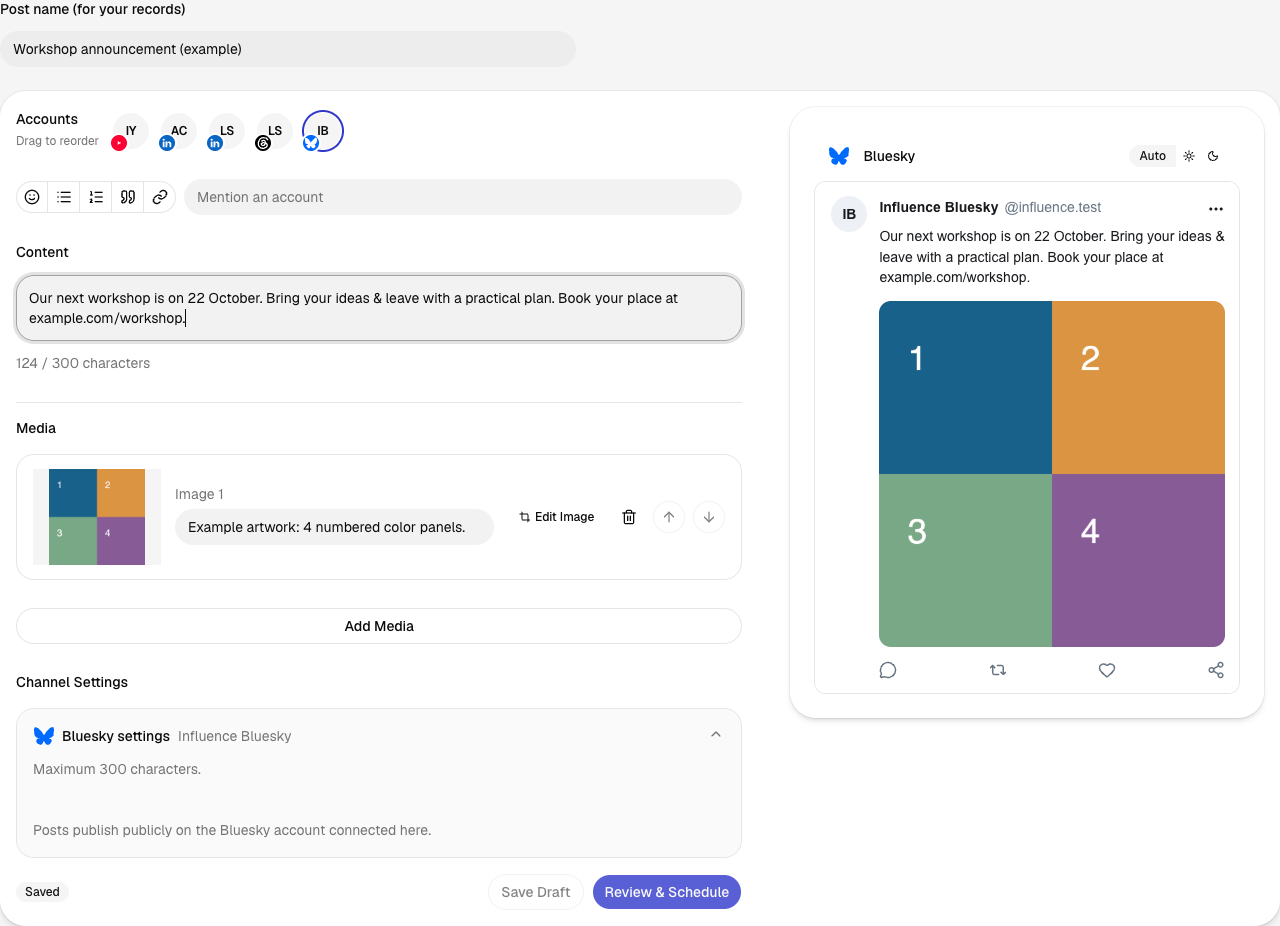
2. Review before approving
The review brings the account, post, date, time & time zone together. Confirm Schedule saves this version for the chosen time.
Open full-size screenshot (new tab)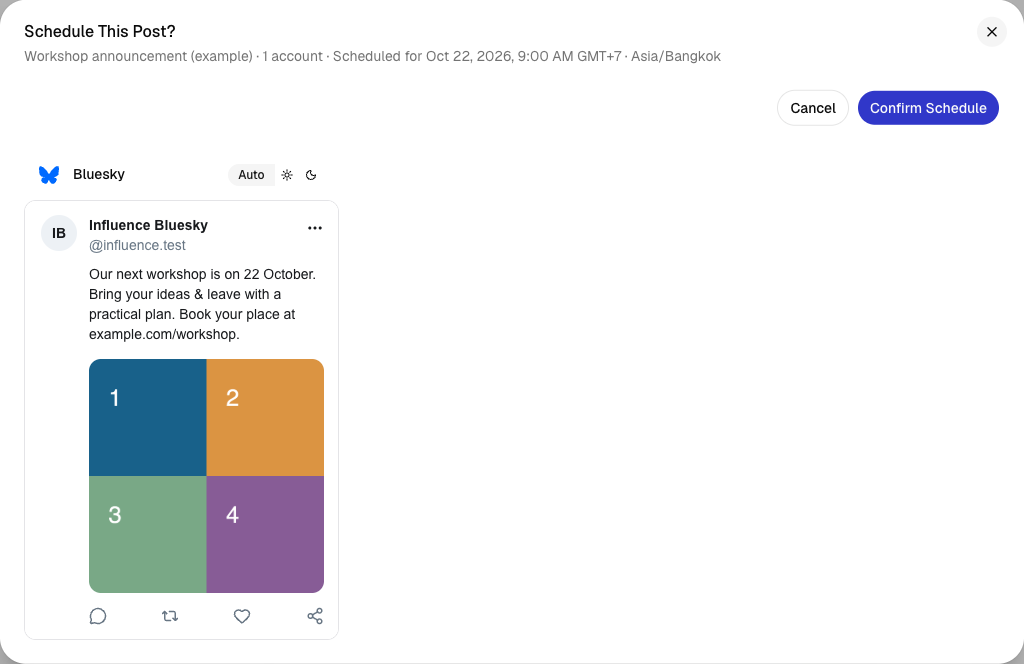
3. Find the scheduled post
The calendar shows when each post is due. Its status changes as publishing progresses; Activity shows the later delivery result.
Open full-size screenshot (new tab)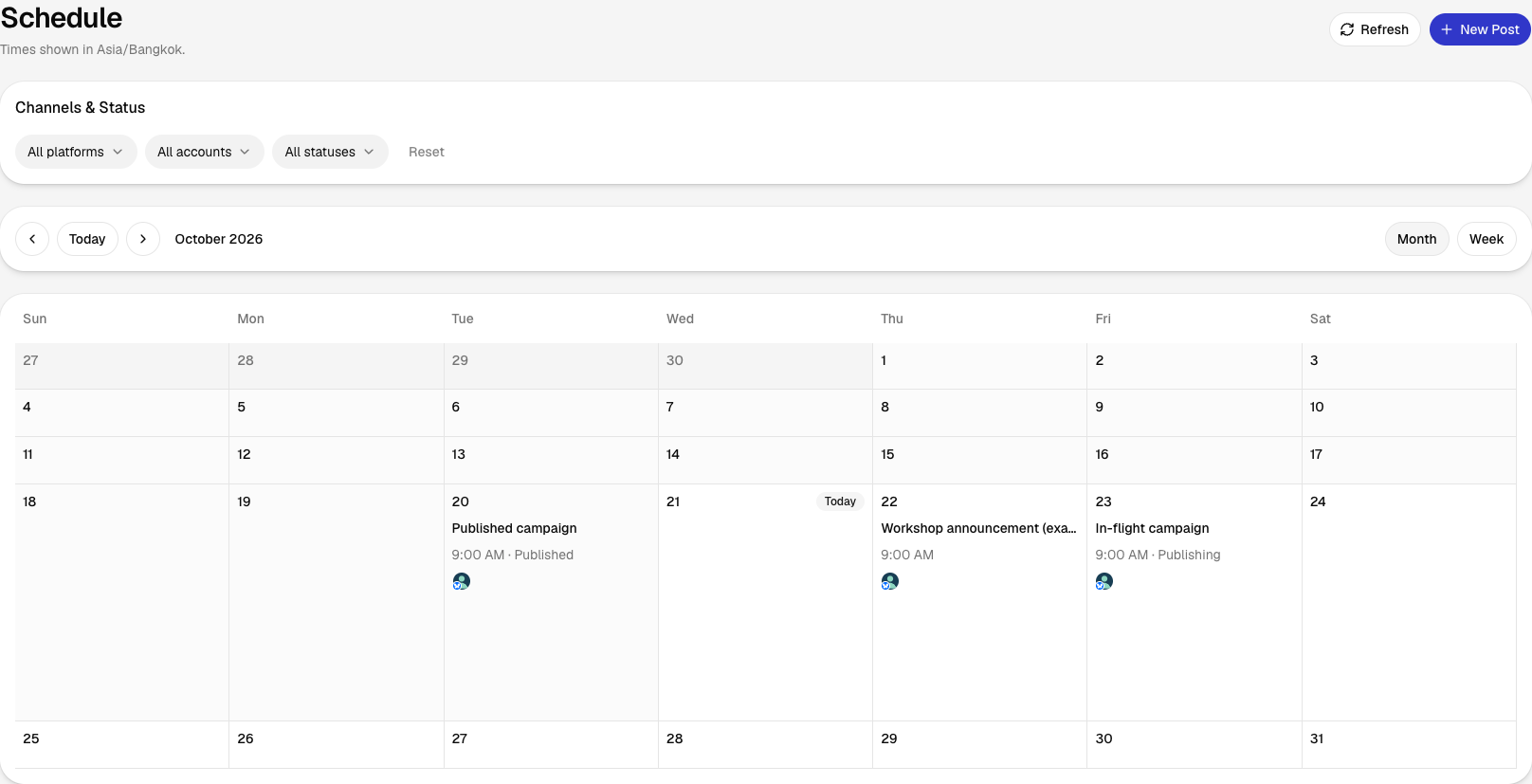
1 Influence workspace for every connected channel
Use accounts already connected to your Influence workspace. Each platform keeps its own formats & posting settings.
ChatGPT custom MCP or Influence workspace?
Use the connected workflow to draft & approve posts with text, photos or videos in chat. Influence manages social accounts, delivery & status.
| ChatGPT custom MCP | Influence workspace | |
|---|---|---|
| Setup | Add your MCP URL & sign in with OAuth | Connect & manage social accounts |
| Sign-in | Your Influence account, no API key | Your Influence account & workspace |
| Drafts | Ask for an editable campaign draft | Edit every destination version |
| Publishing & scheduling | Approve the exact text, photo or video post | Review & confirm the exact action |
| Best for | Starting with a conversation | Managing accounts, your library & delivery status |
What can ChatGPT do with Influence?
Describe the post to ChatGPT, save the draft in Influence & review it before approval. After publishing, you can ask for each account’s result.
Just ask in your own words
Describe the post you need & turn the idea into a saved draft you can refine.
Your connected channels
Choose accounts already connected to your Influence workspace & prepare copy for each destination.
Drafts & media in Influence
Start with a conversation & keep the draft, destinations & media together in Influence.
Schedule several posts together
Prepare up to 10 posts & 50 destinations in 1 batch. Tailor text & media for each account, review the whole batch & approve once. Your plan’s AI scheduling allowance applies.
Bring your photos & videos
Upload finished files your assistant can access, import a public HTTPS file link, or reuse your Influence library. Formats & limits depend on the destination.
Approval before publishing
Approve the post before publishing, then see the result for every destination.
What is the Influence MCP?
Influence connects ChatGPT to your social accounts through OAuth. Prepare text, photo or video posts, review the exact content & approve before publishing. Account & format requirements still apply.
How ChatGPT uses Influence
Use Influence drafting & scheduling tools from a conversation.
- Find connected accounts in your workspace
- Save a draft with separate text for each account
- Images & videos, in order
- Review the exact text, accounts & time in chat
- Check each destination after scheduling
Connection: Influence
Sign-in: OAuth

Available actions:
→ Find connected accounts
→ Save & edit a draft
→ Images & videos, in order
→ Review, publish or schedule
→ Read destination status
What can you ask ChatGPT to post?
Describe what you want to share, where it should go & when. Review the resulting draft before it is ready to publish.
Draft an announcement
“Draft a short launch post for my connected channels about our new feature. Make each version fit its destination.”
Plan a time
“Prepare a post about our event for tomorrow morning. Show me the time zone and every destination before I schedule it.”
Post with your photo
“Use the ready product photo from my Influence media library. Write the caption and give me the Influence review link so I can inspect the image while signed in.”
Share with your community
“Draft a community update for one of my connected channels. Make it clear and friendly, then save it for me to edit.”
Which platforms can ChatGPT post to?
With a ChatGPT connection enabled, choose channels in your Influence workspace & prepare a version for each one.
Is ChatGPT the same as Codex?
No. ChatGPT is a conversational assistant; Codex is a coding agent. They use different Influence connection steps.
| ChatGPT | Codex | |
|---|---|---|
| What it is | Conversational assistant in ChatGPT | Coding agent for terminal & IDE |
| Connection | Custom MCP connection with Influence OAuth | A separate setup & workflow |
| How you use it | Ask in plain language & review actions | Give a software task to the agent |
| Best for | Planning & publishing by conversation | Building & maintaining software |
Other AI agents for Influence
Connection instructions & publishing examples for other assistants.

Claude
MCP connection guide

Hermes Agent
Agent setup guide

OpenClaw
Agent setup guide

Grok Bot
Agent setup guide

Muse
MCP connection guide
MCP clients
1 scoped Influence connection
Frequently asked questions about ChatGPT & Influence
Connect Influence, ask ChatGPT to prepare posts for your selected accounts, & approve the exact review before publishing. TikTok choices & consent can be handled in chat.
Open Plugins, choose Add → Add custom MCP server, name the connection Influence & enter the MCP server URL from Influence Settings → Apps & Automations → Connect Your Assistant → ChatGPT. Use OAuth authentication. After entering the URL, open “Advanced OAuth settings”, set “Base scopes” to offline_access & leave the other settings unchanged. Review the risk warning, select “I understand and want to continue” & choose “Create as a plugin”. Sign in to Influence when prompted, review the workspace & permissions & select “Stay connected for up to 1 year” if you want automatic renewal. Then select “Allow Access” & install the plugin. Without renewal permission, access is temporary & does not renew automatically. Start a new conversation, type @ & select Influence. If ChatGPT asks you to reconnect for a tool, review the requested permissions in Influence & allow only those you intend to use.
Your ChatGPT account & workspace policies control Developer mode & custom MCP connections. Ask your workspace administrator if these controls are unavailable. Your Influence account & publishing access are separate.
ChatGPT is a conversational assistant; Codex is a coding agent. Connect ChatGPT through the OAuth steps on this page. Connect Codex with a scoped Influence key using the Codex guide in Influence Settings.
Read or search saved brand context, campaign plans & Insights; find connected accounts & destinations; upload finished photos or videos; & prepare drafts or batches with account-specific content. After edits, check the saved result; for Insights, check the last update. Influence IQ can plan campaigns or generate images where enabled, using workspace credits after confirmation. Review the image quote first. Publishing needs an exact review & fresh approval in chat or a supported card. For TikTok Direct, choose visibility, interactions & promotion details in chat, then review & explicitly approve the post & consent terms. A review card is optional.
Yes. Influence keeps the approved schedule & handles delivery after you close ChatGPT. Activity shows the result for each account.
No. Connect social accounts inside Influence. An enabled ChatGPT connection uses Influence OAuth & the permissions you approve.
ChatGPT can use accounts connected to your Influence workspace. Influence checks each account’s current publishing permissions before accepting the post.
If tools are missing, refresh Influence’s tools in ChatGPT & start a new conversation with Influence selected. For a custom connection, check whether your account or workspace allows custom MCP servers. If automatic renewal is unavailable, use the setup guide to create a connection with offline_access. Review requested permissions when reconnecting.
Create an Influence workspace & connect your social accounts. When this workflow is enabled for your workspace, the guide in Connect Your Assistant provides the MCP URL & a first prompt to try.
AI assistants & Influence IQ share a rolling 24-hour allowance per workspace: 20 scheduled posts on Starter, 50 on Growth & 100 on Pro. Each destination counts separately: 1 post to 3 accounts uses 3 slots. This allowance does not limit scheduling through the web interface or ordinary API automation.
Upload help, scheduling limits & troubleshootingTurn your ChatGPT ideas into social posts
Connect Influence & start with a draft for your next post.
Ready to get started?
Prepare your posts & media in Influence, review each account’s version & choose when they publish.
Get started