Do PDF headings survive when handouts are combined?
Two workshop handouts can look just the same in a combined PDF, even when one of their headings has disappeared from the document’s structure.
A bold line can look like a heading to someone reading the page. A screen reader can use the file’s heading tags to identify sections and let someone jump from one to the next. Joining pages can preserve every visible word while losing the tag associated with it.[1]
The short answer
We made eight files by merging two tagged handouts. Four kept neither heading tag, and four kept only the heading from the first page. Two comparison files made with both sections written together kept both tags.
A PDF authored from both sections kept both heading tags
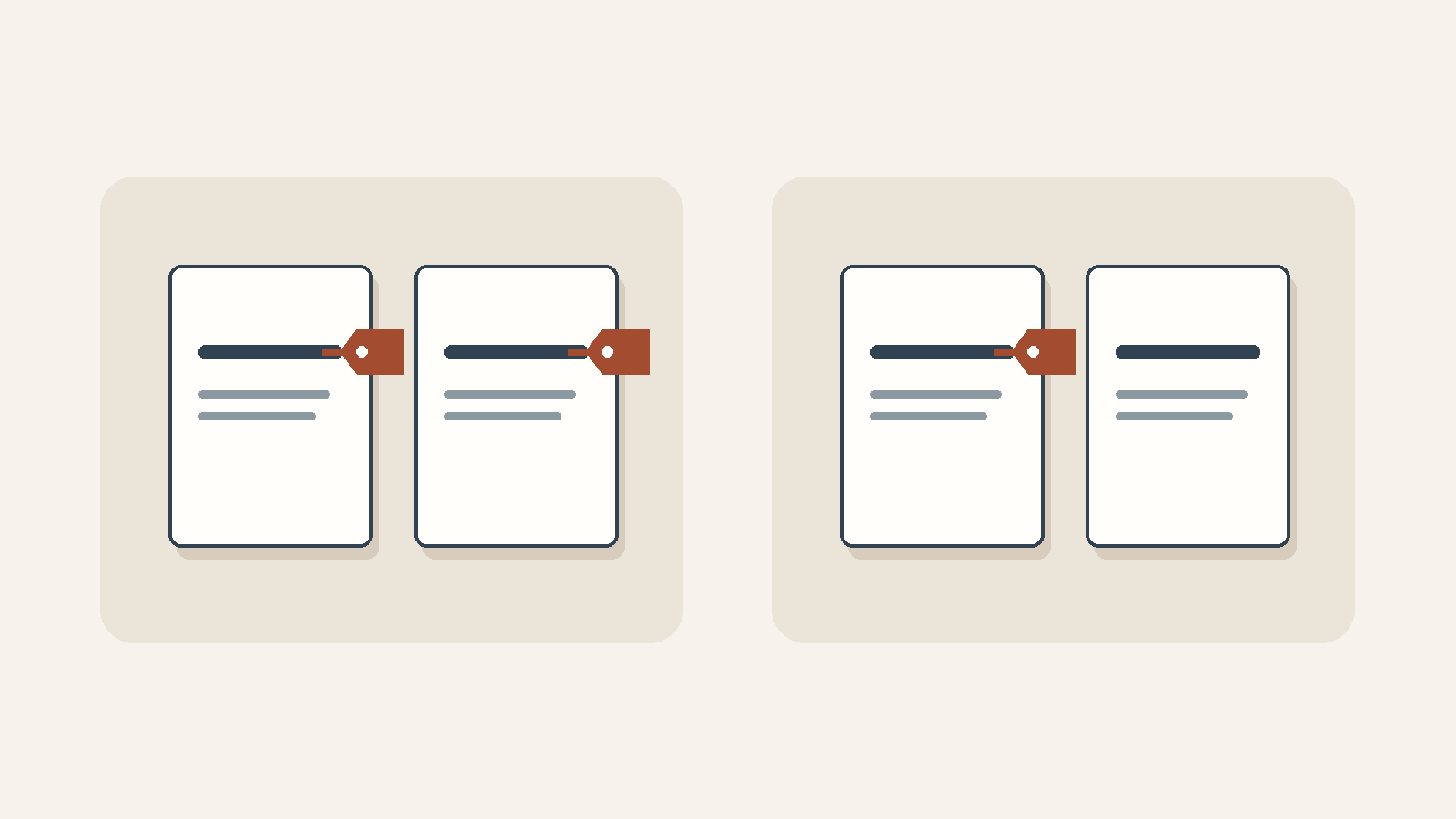
Which heading tags survived
Each of our two test handouts had one page and one tagged heading. We tried two software tools and both page orders. One method copied the pages into an empty PDF. The other started with a copy of one handout and added the other. We also made the two comparison files from the original sections.[2][3]
All ten two-section PDFs kept the visible titles and the searchable text. Yet the four files built from a copy of the first handout lacked the second heading tag, whichever page came first.
Poppler’s PDF information tool still identified each of those four files as tagged. An overall tagged status says that some structure is present. It does not tell a reader which headings survived.
Which PDFs kept their heading tags?
Each row counts the files made using that method. The next 2 columns count files with a heading tag linked to page 1 or page 2. The last column counts files that Poppler’s PDF information tool reported as tagged; that file-level report does not establish whether every heading has a tag.
| How we made the PDF | PDFs checked | Kept page 1 heading tag | Kept page 2 heading tag | Reported as tagged |
|---|---|---|---|---|
| Built one PDF from both sections | 2 | 2 | 2 | 2 |
| Copied both pages to an empty PDF | 4 | 0 | 0 | 0 |
| Added a page to a copy of the first PDF | 4 | 4 | 0 | 4 |
Checking a PDF before sharing it
If you can edit both sections, put them in one source document, apply a heading style to each title and export a tagged PDF.
In a viewer or PDF editor that shows tags, find the heading for each section and see whether it points to the heading text on the right page. If a tag is missing, repair the original document and export it again, or correct the tags in a PDF editor.
Checking tags answers one question. Listening to the finished file answers another: does a reader encounter the material in a sensible order?[1][4]
Check heading tags before sharing a PDF
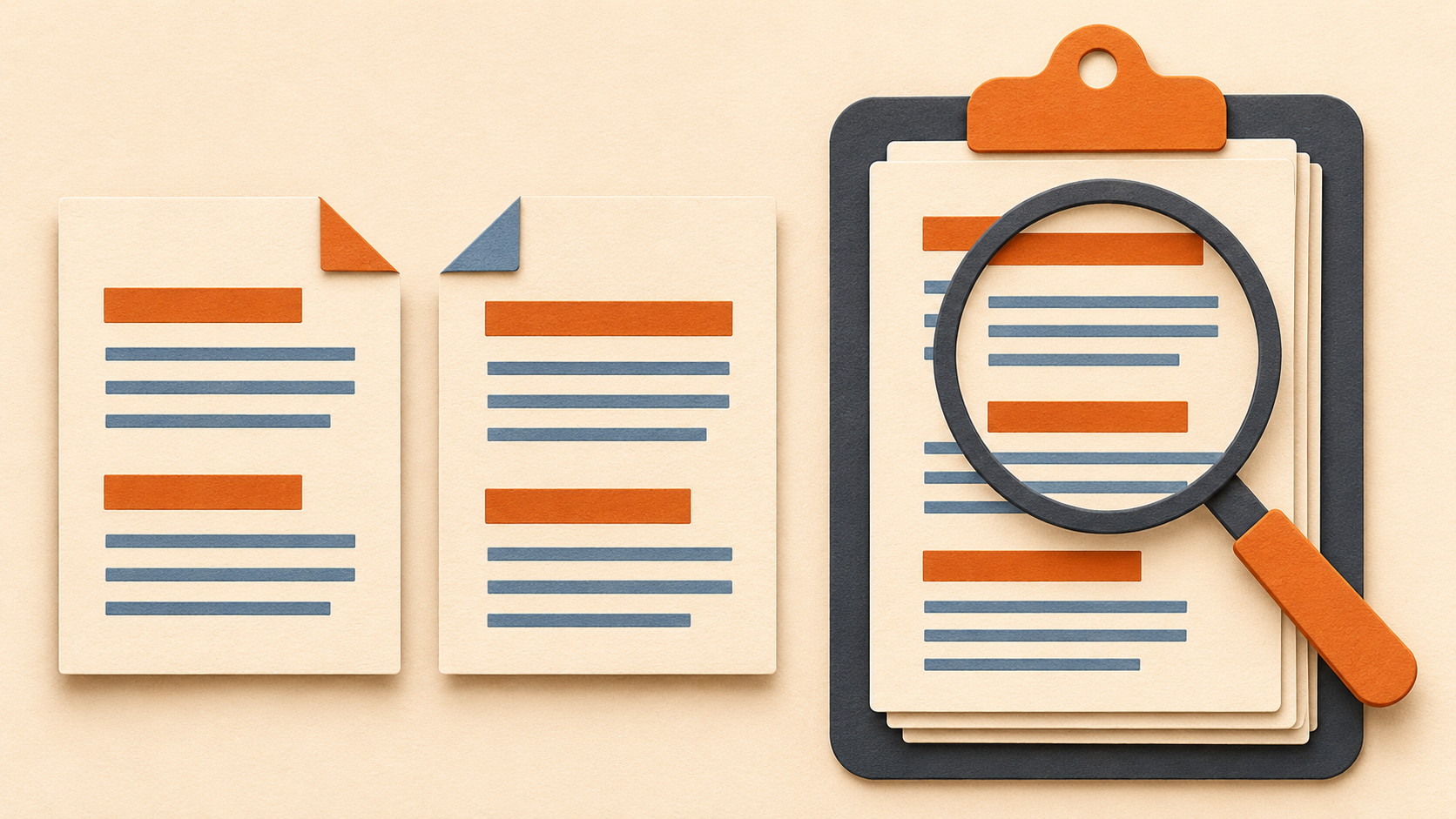
Open the combined PDF
Use the file you plan to share.
Check each section heading
Find the heading tag for each section and confirm that it corresponds to the heading text on the right page.
Fix missing tags
Fix the source and export again, or correct the tags in a PDF editor.
How the study checked the files
Each of the 2 fictional workshop sheets had one visible title with a heading tag. We generated the pages with ReportLab 4.4.9 and combined them using pypdf 7.1.0 and pikepdf 10.18.2.
A heading counted as preserved only when its tag led to the right words on the right page and the page pointed back to that heading. Two independent readers of the PDF structure agreed on every file.
We compared the words and page images with PyMuPDF 2.1. Poppler 26.05.0 also checked images of the two original pages and the twenty exported pages at 144 dots per inch. Every exported page looked the same as its source.
Repeating the process produced the same 12 files, including the two original handouts. We checked the tags stored in those files. Reading order and navigation in a particular screen reader need a separate check.
The ZIP contains all 12 fictional PDFs, file-by-file results, and replay instructions in English.
Sources and notes
2 fictional handouts and 10 two-section PDFs
- W3C guidance on PDF tags and checking reading order.
- pypdf documentation on combining PDF pages.
- pikepdf documentation on assembling PDFs.
- Adobe’s guide to checking and correcting the tags in a PDF.