Why a PDF flyer can show one time and contain another
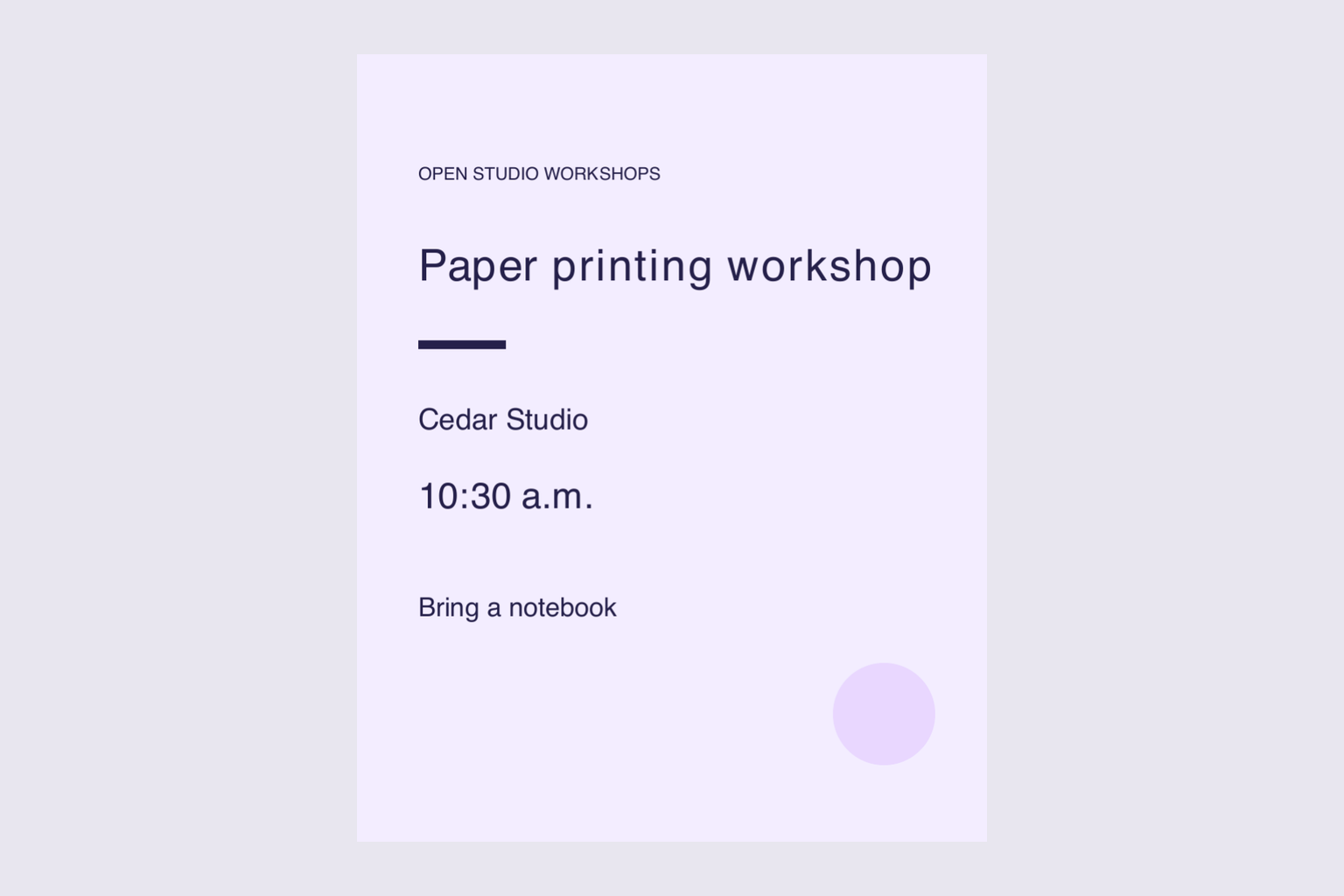
Our test flyer showed a workshop at 10:30 a.m. A tool reading the text stored in the PDF returned 10:00 a.m.
A PDF can contain a picture of a page and a layer of text behind it. The text lets someone search for a venue or copy an event time without typing what they see. If that hidden layer is out of date, the picture on screen gives no warning.
The short answer
We deliberately put the wrong time behind three flyers, one in each language. Both text-extraction tools found all three wrong times and none of the correct ones in those files. They still found the nine other correct phrases. In versions that held only a picture, they found no stored phrases.
The visible flyer shows the correct time
What the readers found
A PDF may store its words as text or display them as pixels in a picture. Software that extracts text can read letters stored invisibly behind a picture. On an image-only page, it needs optical character recognition (OCR) to identify the words in the picture.[1][2][3]
We made three flyers, one each in English, Spanish and French. Two extraction tools looked for the title, venue, event time and a short note on each. Both found all 12 phrases in the original files and in the pictures backed by matching text. Neither found a phrase in the image-only versions.
What text did the extraction tools find?
Each tool checked 4 phrases on each of 3 flyers.
| PDF version | Correct phrases found out of 12 | Correct times found out of 3 | Incorrect times found |
|---|---|---|---|
| Original with text | 12 | 3 | 0 |
| Page image only | 0 | 0 | 0 |
| Page image with matching text | 12 | 3 | 0 |
| Page image with the wrong time in its text | 9 | 0 | 3 |
When the text has a different time
We made another image-based file for each flyer and put a different time in its invisible text layer. The English flyer still showed “10:30 a.m.,” but both text extraction tools returned “10:00 a.m.” Across the 3 flyers, each tool found 9 of the 12 correct phrases, all 3 deliberately incorrect times and none of the correct times.
For each flyer, the image-only version, the version with matching text and the version with a different time produced the same pixels when rendered at 144 dpi. In this comparison, the 3 image-based versions looked identical despite their different stored text. The original file with visible text produced different pixels.
Checking a PDF before sharing it
Open the exported PDF and search for the event name, venue and time. Copy a line into a plain-text editor and compare it with the page. A failed search or copy can mean the stored text is missing even when the detail is visible. If a website or email workflow changes the file, check the copy people will actually receive.
If you have the original and the PDF contains only an image, export it again with the text intact. If you only have the image-only PDF, use OCR and check the recognized text. For a public flyer, also put the key details in the email or on the event page. [1] [2]
Open, search and compare

Open the exported PDF
Use the exact file you plan to share.
Search for key details
Search for an event name, venue and time shown on the page.
Compare the copied text
Paste the event name, venue and time into a plain-text editor. Check the words, numbers and accents against the page.
How the files were tested
On November 20, 2026, we made three one-page flyers with ReportLab 4.4.9. Each had four versions. We kept the original and made three copies from the same picture of the page.
One copy held only the picture. A second had matching, invisible text behind the picture. The third held the same picture and a hidden text layer with a different event time.
We used pypdf 6.21.4 and pdfplumber 0.11.9 to extract the title, venue, time and short note. We preserved accents and standardized spaces and equivalent character encodings before matching the phrases.[3][4]
Poppler 26.05.0 rendered each PDF at 144 dots per inch so we could compare the visible pages pixel by pixel. Rebuilding the files gave the same results. We tested stored text, without asking a viewer to recognize words in the pictures.
The ZIP includes the fictional PDFs, expected phrases, measurement results, scripts and replay instructions in English.
Sources and notes
A test of 12 PDFs made from 3 fictional flyers
- Adobe Acrobat help, recognizing text and making an image-only PDF searchable.
- W3C PDF7, OCR and checking the accuracy and reading order of the resulting text.
- pypdf documentation, extracting text from PDF content and the limits of image-only files.
- pdfplumber documentation, reading stored text from PDF pages.