Will your animation play the right number of times after export?
An animation meant to play twice can turn into a still picture, or it can keep moving but stop one pass too soon.
A GIF stores its animation as a series of pictures called frames. It also contains instructions about repeating them. When someone saves it in another format, the software has to carry across the pictures and translate the instructions for when to stop.
The short answer
We converted four GIFs of a moving dot. In one test, copying the repeat number from a GIF meant to play twice produced a file set to play just once. Keeping every frame and explicitly setting the intended total preserved the animation in both animated PNG and WebP.[1][2][3][4]
An export can keep every frame and still lose a play
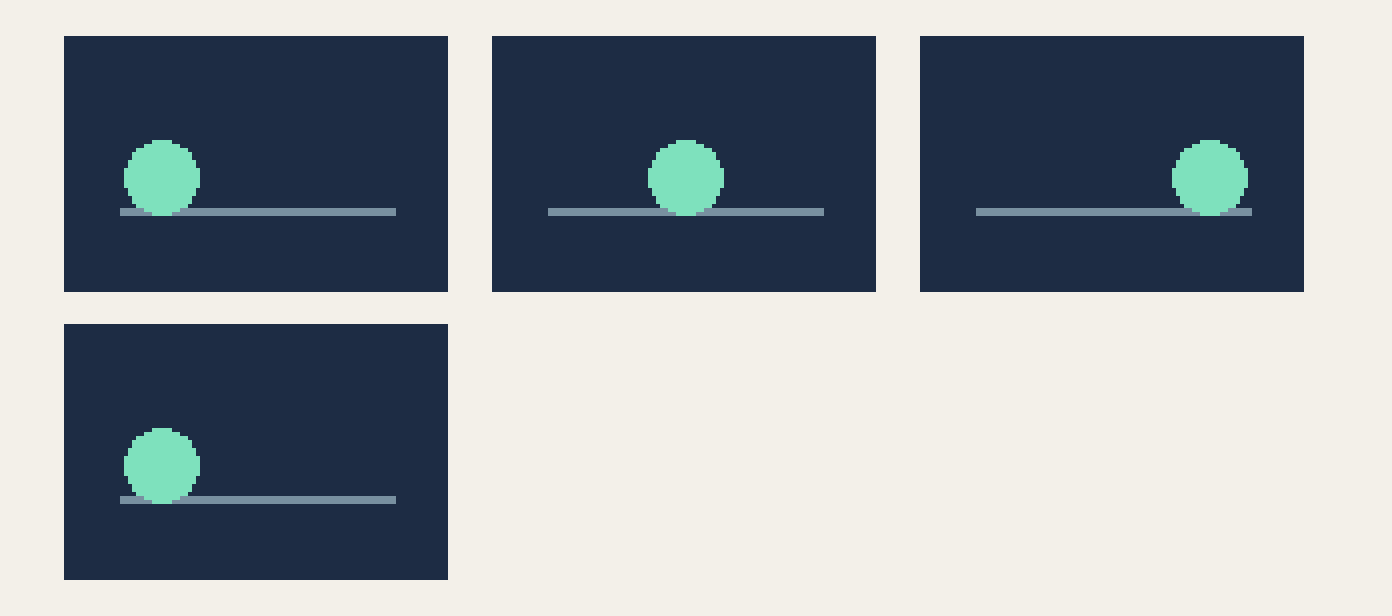
Does the exported file still move?
Each test GIF contained three frames of the dot moving across the screen. We set the four files to play once, twice, three times or continuously, so we could check both the motion and the stopping instructions after export.
Pillow and Sharp are tools for reading and saving images. When we told Pillow to save just one frame, or let Sharp open the GIF with its usual settings, the new file contained only the first picture. [4] [5]
Telling the tools to keep every frame preserved the motion. But the play count was controlled separately, and it could change even when all the frames survived.
Why two plays can turn into one
A repeat is an additional pass after the first. A GIF set to play twice makes one initial pass and then repeats it once, so its repeat field is 1.
Animated PNG and WebP count the initial pass as well. Copying 1 into either format declares just one play. A total of 2 is needed to declare two plays. [1] [2] [3]
What happened with each export
We tested what happened when the GIF repeat number was copied into Pillow’s settings for animated PNG and WebP. The exports made from the two-play GIF instructed a player to play once. Those made from the three-play GIF asked for two plays.
The GIF meant to play once had no repeat field. When no count was supplied for it, the Pillow method we tested fell back to continuous playback. [4]
In a separate Pillow WebP test, we left the count unset for all four GIFs. All four outputs declared continuous playback. For animated PNG, Pillow used the GIF repeat setting when it was present in the first decoded frame.
Explicitly setting the intended total preserved the intended play counts for all four GIFs in both formats. Sharp also preserved them for WebP when animated input was enabled. [4] [5] [6]
How many times was the export set to play?
Each export in the table kept all three frames. The values show how many passes the file instructs a player to make.
| Source GIF | Pillow with GIF count (PNG and WebP) | Pillow WebP with no count set | Pillow with intended total (PNG and WebP) | Sharp WebP from animated input |
|---|---|---|---|---|
| Set to play once | Forever | Forever | 1 | 1 |
| Set to play twice | 1 | Forever | 2 | 2 |
| Set to play three times | 2 | Forever | 3 | 3 |
| Set to play forever | Forever | Forever | Forever | Forever |
Check the file people will see
Decide how many complete passes the animation should make, including the first. Keep all frames when exporting motion, and check whether the format or tool expects a repeat count or a total play count. [1] [2] [4] [6]
Open the exported file from the beginning and count its complete passes. If it should stop, wait long enough to see whether it starts another pass. If a site processes uploads, check the version the audience will see too.
Check what happens after export
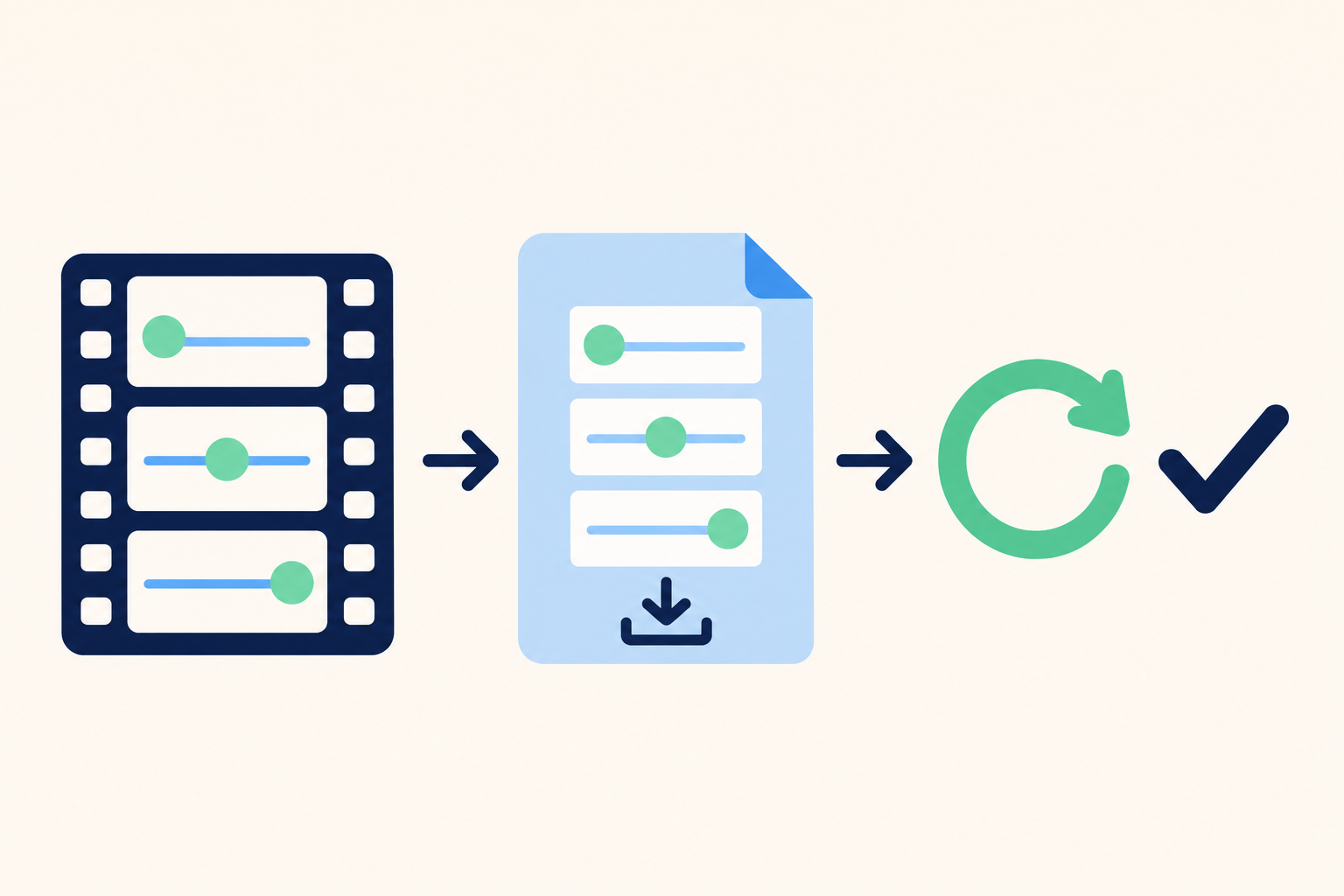
Decide when it should stop
Write down the total number of plays or decide whether it should keep going.
Export with motion
Use the animation setting if there should be more than one frame.
Open the actual export
Count complete passes from the start. For an animation meant to stop, watch through its final pass.
How we checked the files
We converted each of the four GIFs ten ways and ran the experiment three times. The 44 files comprised four originals and 40 exports. Each file had exactly the same bytes across the three runs.
Each moving file kept the dot’s three frames and their delays of 200, 300 and 500 milliseconds. Each still file contained the original first frame.
Using Pillow 13.0.0 and Sharp 0.35.5, we read the loop counts stored in each file and compared them with the counts reported by the decoding software. We also compared the decoded frames. The play counts reported here are instructions saved in the files. Watching the version an audience will see is an additional practical check. [1] [2] [3] [4] [5] [6]
The ZIP includes the 44 synthetic files, measurements, scripts, and replay instructions in English.
Sources and notes
4 synthetic GIFs, 40 conversions
- W3C PNG specification, the animation control chunk and total number of plays.
- Google WebP container specification, the animation header and how playback uses its count.
- Chromium’s WebP decoder source, comparing repeat counts in GIF and WebP.
- Pillow format documentation, saving animated GIF, PNG, and WebP images.
- Sharp constructor documentation, reading only the first page or all frames.
- Sharp output documentation, the WebP animation options.