Why can a vertical video have a sideways cover?
A video file can tell a player to turn its frames. Check whether the tool that makes the cover applies the same turn.
We tested 4 H.264 orientation clips with FFmpeg 8.1.2 and AVFoundation on macOS 26.5.1.
Abstract
A clip can play upright while its cover is turned. We tested 4 clips from a public orientation set. All stored 1,920 by 1,080 frames. Applying their rotation instructions made 2 clips vertical and turned another 180° without changing its dimensions. Apple’s default still-image generator left the stored frames as they were, while FFmpeg’s default extraction applied the turn. Both tools produced upright stills when set to apply the track instruction. Before handing off a video, check the cover beside the matching moment in playback. [1][2][3]
You receive a vertical product clip and choose a cover from the video. The product stands upright when the clip plays. In the cover proof it lies sideways. Rotating the whole clip at this point might change a video that already plays correctly. Find out what happened to the still first.
The place to start is the difference between the picture stored in the file and the way a tool presents it. Check both, and look at the cover separately. A short test using the same file and the same moment makes the cause easier to see.
Compare the preview and the cover

One clip can have two sets of dimensions
An MP4 can store a wide frame and carry a display instruction that tells a player to turn it. The instruction lives with the video track. A tool that reads the stored dimensions sees the frame before the turn. A tool that applies the instruction can produce a tall image from the same file. Apple documents this arrangement for its movie capture API, which can record orientation in a QuickTime track matrix. [4]
All 4 clips in the Shotstack set stored 1,920 by 1,080 pixels. The 90° and 270° instructions made the extracted display frames 1,080 by 1,920. Both look vertical after the turn, even though they rotate in opposite directions. The video with no turn and the 180° clip both kept their landscape dimensions. [1]
The 180° clip is a useful check when a reviewer trusts dimensions alone. The stored image showed the coast upside down. Applying the instruction put the sky above the water without changing the width or height. Use a detail with an obvious top and bottom to check the picture itself.
Frame dimensions with and without the turn
Stored dimensions and dimensions after applying the track’s rotation instruction.
| Clockwise turn | Stored width | Stored height | Displayed width | Displayed height |
|---|---|---|---|---|
| 0° | 1,920 | 1,080 | 1,920 | 1,080 |
| 90° | 1,920 | 1,080 | 1,080 | 1,920 |
| 180° | 1,920 | 1,080 | 1,920 | 1,080 |
| 270° | 1,920 | 1,080 | 1,080 | 1,920 |
Why a still can differ from the clip
Playing a video and generating its cover image are separate operations. Apple documents that its AVAssetImageGenerator API leaves the track transform off by default. In our runs, its default frames showed the 90° and 270° clips sideways and the 180° clip upside down. Applying the transform explicitly gave all 4 stills the intended orientation. [1][2]
FFmpeg’s default extraction applied the rotation in this test. Turning automatic rotation off produced the stored views. Across the same 2 requested points in each clip, both tools agreed on the effect of the turn. Their rules for selecting a nearby frame can differ, so we compared orientation within each tool before checking agreement across tools. These results describe the tested paths. A product that uses either tool can set its own options. [2][3]
A cover that looks wrong in one view can also be a crop problem. Look first at an object with a clear direction, such as a product label or a horizon. If it points the right way and important content is cut off, review the crop in that view. If the object is lying sideways or upside down, compare the cover’s orientation with the video before changing the crop.
Check the video and cover before handoff
Open the exact export you plan to hand off. Play the opening and another moment where the direction is easy to see. Then inspect the chosen cover image next to the matching moment in the video. If you publish the clip in several places, check the cover in each destination’s preview. Note which export and cover went into the approval so a replacement can be checked against the same reference.
If playback is right and only the cover is turned, try extracting the cover with the display rotation applied. A separate still may be sufficient in a destination that accepts one. Verify the still at its final crop and keep the original video. A screenshot can help compare directions, but check the actual exported still for unwanted controls or text.
If the handoff tool needs the stored frame itself in the intended orientation, export a new copy that applies the turn to the pixels. Open that copy and its newly generated cover. In our short FFmpeg re-exports, the tall frames were stored at 1,080 by 1,920 and the landscape frames at 1,920 by 1,080. All 4 copies had zero effective display rotation. [1][3]
Make the smallest change the handoff needs. Encoding a new copy can affect visual detail, audio and captions. Check those parts if you change the video, and keep the source so you can make a fresh export. For example, if a lamp stands upright during playback and lies sideways only on the cover, check the corrected cover beside the same moment before sending it for approval.
Check orientation before publishing
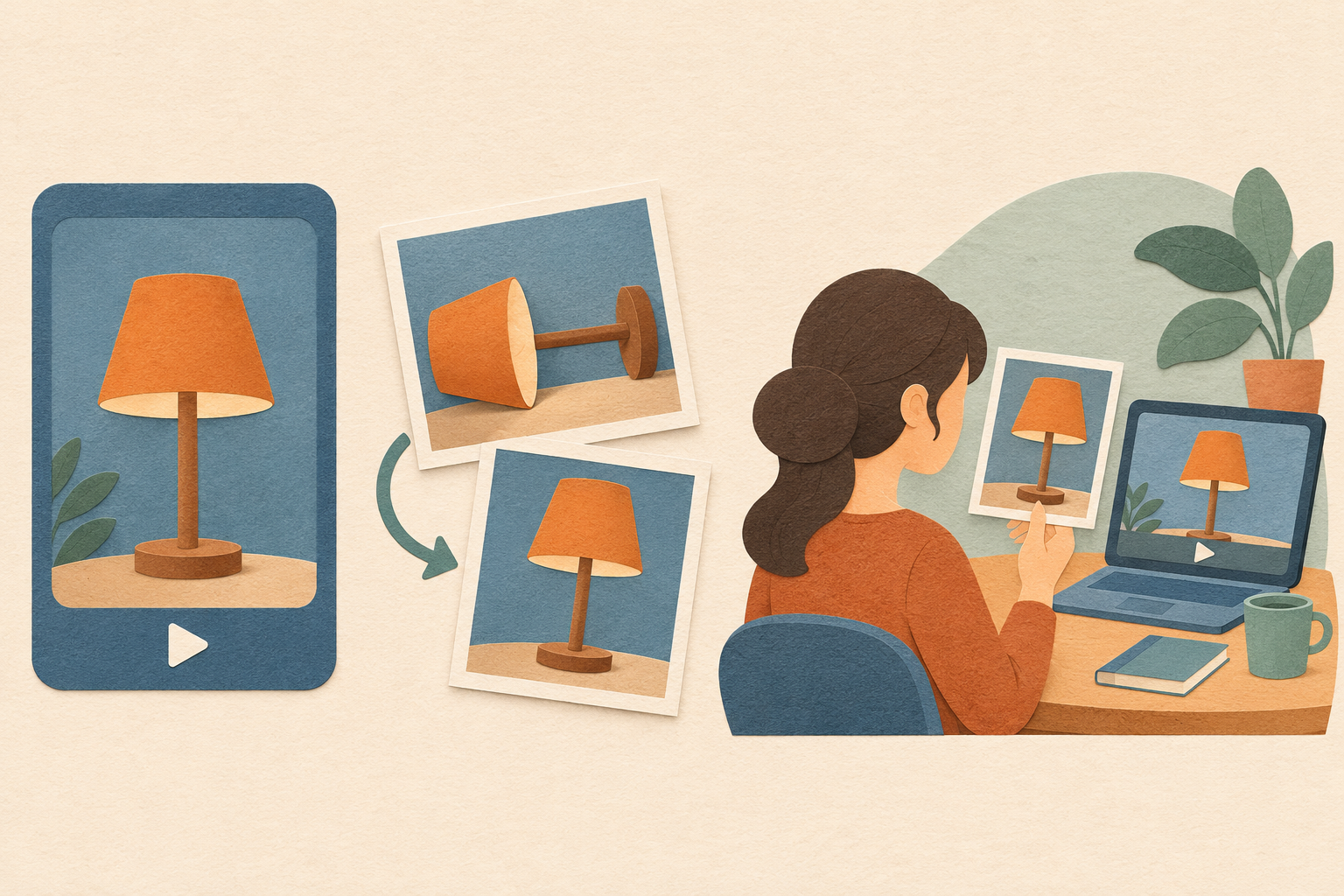
Open the exact export
Find a moment with a level horizon, readable text or an object with a clear top and bottom.
Compare the cover
Look at the same moment in the video and the still. Check the direction before adjusting the crop.
Review the final files
Open the corrected still or export. Verify how the video and its cover appear in the destination preview.
The ZIP contains the results, source checksums and replay scripts. Find the checklist in your language in the guides folder.
Methods
We used all 4 orientation clips in the pinned Shotstack fixture set, recorded by Jeff Shillitto on a Samsung Galaxy S9 and released under CC0. Each file contains H.264 video with square pixels. We verified each file against its source blob and SHA-256. This deliberately selected set covers the 4 example turns. Its counts apply to those clips. [1]
We read stored dimensions and the display matrix with FFprobe 8.1.2 and the corresponding track properties with AVFoundation on macOS 26.5.1. In FFmpeg 8.1.2 we selected the first decoded frame at or after 1 and 2 seconds, extracted its luminance plane with and without rotation, and verified the exact pixel mapping for all 8 comparisons. AVFoundation reported equal actual frame times between its two settings at each requested point within each clip. We checked the resulting direction against the scene. [2][3]
We also re-encoded a short video-only excerpt from each clip with FFmpeg’s automatic rotation enabled. We checked the new files’ dimensions, their effective rotation and their opening frames against the correctly oriented source frames. The replay package includes the file links, checksums, versions and scripts. Its results cover the named tools and settings.
Sources and notes
- Jeff Shillitto, Mobile Orientation Test Videos, Shotstack test-media fixture set, pinned revision. The four orientation clips are provided under CC0.
- Apple, appliesPreferredTrackTransform. AVAssetImageGenerator leaves the track transform off by default.
- FFmpeg documentation, Video Options. Automatic rotation is enabled by default. We tested version 8.1.2.
- Apple, videoRotationAngle. Its movie capture API can record rotation in a QuickTime track matrix.
Every language edition uses the same 4 clips and software results.