Guides
LinkedIn Image Sizes: Posts, Page Covers, and Export Checklist
Published by Influence
Last checked
For a LinkedIn Page, use a 1512 × 256 px cover and a 400 × 400 px logo. LinkedIn recommends 1200 × 627 px for a custom image in a Page post with a URL. That link-post recommendation is not a universal rule for every image-only post.
A useful LinkedIn image guide begins with the surface: company identity, a native feed image, or a website preview. Choosing the correct surface prevents a common mistake—treating every LinkedIn image as the same wide rectangle. Source specifications checked October 15, 2026.
Download template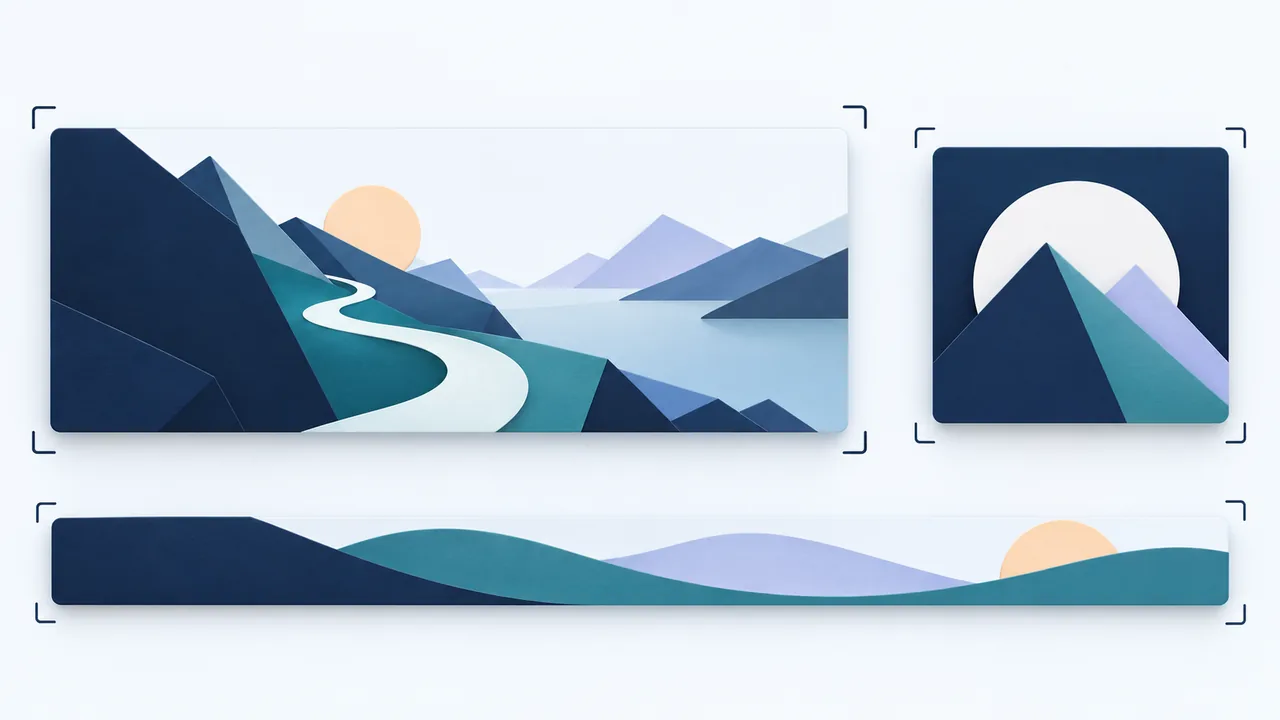
LinkedIn dimensions by destination
| Destination | Dimensions | Status |
|---|---|---|
| Page cover | 1512 × 256 px | LinkedIn recommended size |
| Page logo | 400 × 400 px | Recommended; minimum 268 × 268 px |
| Page post with URL: custom image | 1200 × 627 px · approximately 1.91:1 | LinkedIn guidance for that specific surface |
| Native square post graphic | 1080 × 1080 px | Influence working canvas, not a platform maximum |
| Native portrait post graphic | 1080 × 1350 px | Influence working canvas; review the actual post preview |
LinkedIn’s Page image specifications specify PNG or JPEG and a 3 MB maximum for the listed Page assets. Do not apply that Page-asset limit to every kind of LinkedIn upload. The same documentation distinguishes a post with a URL from an image-only post and warns that cover crops vary by screen.
Design for the reader’s screen
A diagram that looks clear on a large monitor can fail in a phone feed. Use one main idea, a short headline, and labels that remain legible at a small width. If the information needs several steps, consider a document or a sequence instead of shrinking a full report into one picture. An image should support the post’s explanation, not force readers to zoom to understand the point.
- Identify the destination before exporting: Page cover, logo, native image, or link preview. Keep that choice in the filename and review notes.
- For a Page cover, keep important details away from the edges and especially the lower-right corner. Check the visible area on desktop and mobile.
- For a logo, inspect both light and dark surroundings. Leave enough space around the mark and avoid putting a long slogan inside a small square.
- For a post graphic, write the headline first and remove details that belong in the accompanying text. Export from the editable original at the intended aspect ratio.
- Preview the real destination and verify the post text, link, and company identity. If a link preview is wrong, inspect the website’s sharing image rather than repeatedly uploading a different native post graphic.
Copy the LinkedIn image review worksheet
Company and reviewer: [names]
Destination: [Page cover / logo / native image / link preview]
Purpose: [one idea readers should understand]
Canvas: [width × height in px]
Rule source: [official specification / working recommendation]
Headline and essential visual: [text and subject]
Phone readability and cover crop: [pass / revise]
Link preview and destination checked: [result]
Final asset filename: [file]
Approval status: [draft / approved for scheduling]
The worksheet is free and ungated. Copying or filling it does not update a LinkedIn Page or create a scheduled post. Keep approval separate from publication so a draft asset cannot be mistaken for a live announcement.
Worked example: a small bookkeeping firm
Fictional example
Fictional business: Clear Ledger. The firm wants to explain the three documents a new client should prepare before an introductory meeting.
Native post: a 1080 × 1080 px working canvas, with a short headline and three large document symbols. Detailed explanations go in the post text.
Page cover: a separate 1512 × 256 px file showing the firm’s name and service focus. The three-document checklist is not squeezed into the narrow cover.
Review: the first export has unreadable labels on a phone. The editor reduces each label to two words and adds the full document names to the caption.
Decision: approve the revised post image and cover separately. These are fictional production decisions, not evidence of increased impressions or leads.
Common LinkedIn image questions
Must every LinkedIn image be 1200 × 627 px? No. LinkedIn’s cited recommendation concerns a custom image in a Page post with a URL. Use a canvas suited to the actual surface and check the current upload preview.
Can the company cover contain detailed pricing? It can become hard to read or crop poorly. Put essential commercial details in accessible page text or a linked destination, and use the cover to communicate a clear identity.
Does choosing the correct size improve reach automatically? No. Correct dimensions support presentation. They do not guarantee distribution, engagement, or conversions.
Use the content repurposing guide to turn a longer explanation into a readable post. Record the reviewed asset and caption in the social media calendar, then use the LinkedIn timing guide to plan a measured publishing test.